Adding A Production
To add a production click the “Add Production” button in the top right of the home page.
This will bring up the dialogue to add a new production.
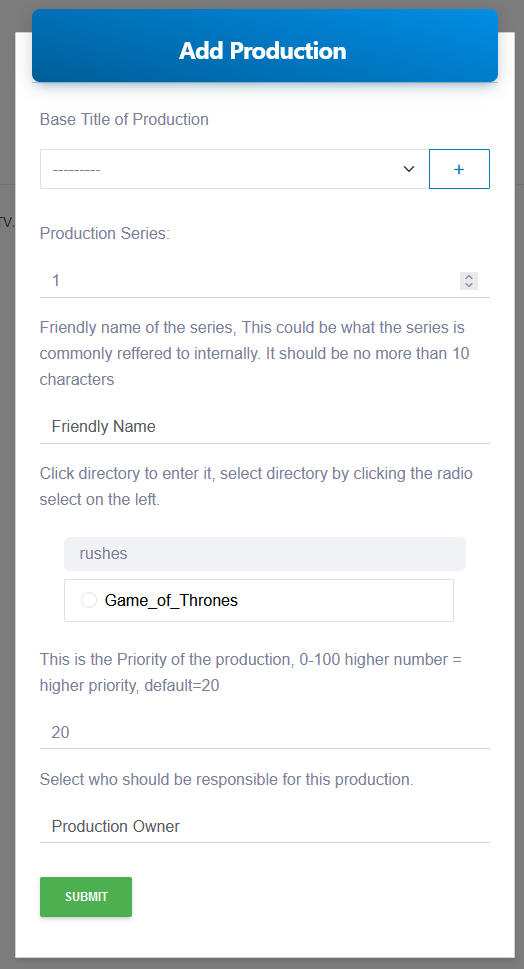 A production consists of two parts. The Base Production and the Production.
For example your Base Production may be “Game of Thrones” then the Production could be “Game of Thrones Series 1”
Base Production
Select the Base Production, if it doesn’t exist create it by clicking the button next to the select dropdown.
Enter the new name of your production and click submit.
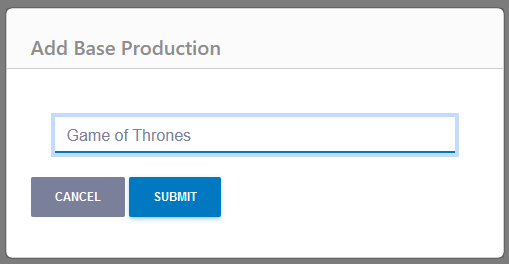 The name you entered will be automatically selected.
Production Series
Enter the series of the production you are adding. This must be an integer.
Friendly Name
Enter a short friendly name for the series. This is what will appear on the default thumbnail. In this example we will enter GOTS1
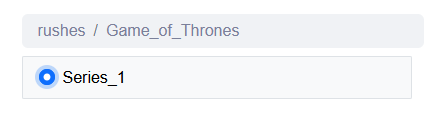
Select the location of the camera rushes.
Click on a directory to open it and select it by clicking the radio check mark on the left.
Priority
Most productions can be left as the default of 20. But if you have a smaller production or one where the transcodes need to be run before others you can change the priority here. 0 = lowest priority 100 = highest priority.
Production Owner
This is who will be responsible for the production. They will get the emails to say that the production has been scanned etc. This will usually be the edit assistant assigned to the project. The user must exist in the Glympse system.
If left empty, this will default to the admin user.
Click submit and the production will be added to Glympse and the Processing engine will start scanning for new clips.